How to Make Your Own WordPress Theme: 3 Ways
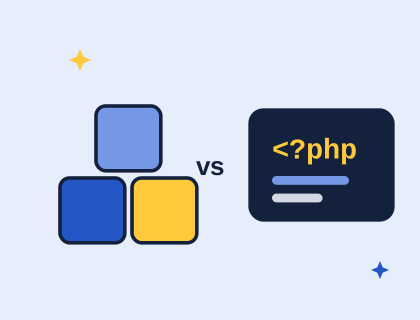
Three routes to a theme of your own: an online theme builder, designing in the Site Editor and exporting, or writing the files by hand.

By Steve, Founder and editor, website developer
Updated
· Last reviewed · 2 min read

In short
- You can make a WordPress block theme without writing code, using a theme builder or the Site Editor.
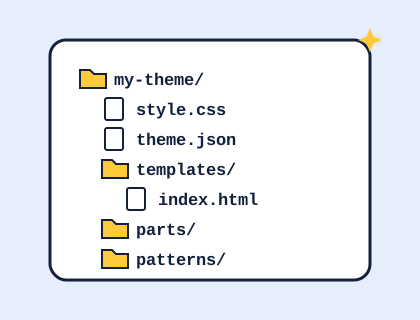
- A hand-built block theme needs only style.css and templates/index.html to work; theme.json adds colours, fonts and layout.
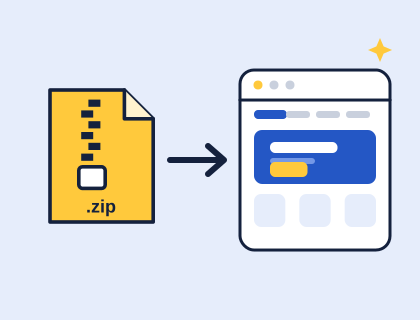
- Our free theme builder makes a tested block theme .zip in your browser in about ten minutes.
- Whichever route you take, the result installs like any other theme, from Appearance › Themes › Upload Theme.
Which way should you make a theme?
| Route | Skills needed | Time | Best for |
|---|---|---|---|
| 1. A theme builder | None | 10 minutes | Getting a branded theme quickly |
| 2. Site Editor and export | Comfortable with the editor | An afternoon | Fine control without code |
| 3. Write the files | HTML, CSS, JSON, a little PHP | A day or more | Developers, unusual designs |
Route 1: Use a theme builder
Our free theme builder asks six questions: what kind of site you're making, your colours, your fonts, your layout, your pictures and your theme's name. It shows a live preview as you go and makes a complete block theme .zip right in your browser, with templates, a header and footer, your fonts and your images. Every theme it makes is tested to install and validate in the latest WordPress.
After installing, you can change anything in Appearance › Editor, so the builder is a fast start, not a straitjacket.
Route 2: Design in the Site Editor, then export
Start with any block theme, such as the current default theme, and change its templates, parts and styles in Appearance › Editor. When you're happy, save the result as a theme of its own. WordPress's theme handbook describes the free Create Block Theme plugin for this: it adds a screen where you enter your theme's details, then downloads a .zip containing all your changes, ready to install on another site.
Route 3: Write the files yourself
A minimum block theme is genuinely small:
- Create a folder in
/wp-content/themes/, for examplemy-theme. - Add
style.csswith a header comment containing at leastTheme Name: My Theme. - Add
templates/index.htmlcontaining block markup, for example a header part, a query loop of posts and a footer part. - Add
theme.jsonto set your colour palette, fonts, font sizes and content widths. - Add
parts/header.htmlandparts/footer.html, then more templates as you need them.
The easiest way to learn the block markup is to build a section in the editor, switch to the code editor view and copy what WordPress wrote. See what's inside a block theme for what each file does.
How do you share or sell a theme you made?
WordPress is licensed under the GPL, version 2 or later, and themes for the official theme directory must use the same licence. If you include fonts or images, check their licences allow it: the fonts in our builder are under the SIL Open Font Licence, which allows bundling. Use your own name in the theme, and don't use the WordPress name or logo in a way that suggests it's an official product.
Where to go next
Open the theme builder, or browse free themes you can customise.
Questions and answers
Is the theme builder really free?
Yes. The theme builder and the themes in our catalogue are free to download and use, on as many sites as you like. We ask for an email address before downloads, which you only enter once on each device, and you choose separately whether to get our newsletter. Open the builder.
Are my photos uploaded when I use the theme builder?
No. When you use the public builder, your logo and photos are resized in your own browser and packed straight into your theme file. They are not uploaded to our server.
Can I sell themes I make with the builder?
The themes are licensed under the GPL, version 2 or later, like WordPress, and the bundled fonts use the SIL Open Font Licence, which allows bundling. Give your theme your own name, and don't present it as an official WordPress product.
Sources and further reading
Didn't find your answer?
Ask us anything about WordPress or the theme builder. We answer the most useful questions here, so others can benefit too.