Block Themes vs Classic Themes: Which Do You Need?
Block themes are edited visually in the Site Editor; classic themes use PHP templates and the Customizer. Here is how they differ and which to choose.

By Steve, Founder and editor, website developer
Updated
· Last reviewed · 2 min read
In short
- A block theme builds every part of the site, including the header and footer, from blocks you can edit in Appearance › Editor.
- A classic theme uses PHP template files, with design options in the Customizer and widgets.
- Full site editing and the first default block theme, Twenty Twenty-Two, arrived in WordPress 5.9 in January 2022.
- For a new site in 2026, a block theme is usually the better choice.
What is a block theme?
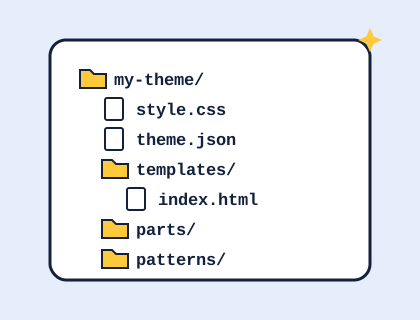
A block theme is a WordPress theme made entirely of blocks: the same building blocks you use to write posts. Its templates are HTML files of block markup, and its colours, fonts and spacing live in a theme.json file. You change everything visually in the Site Editor (Appearance › Editor), including the header, footer and page templates. WordPress's theme handbook says a theme needs templates/index.html for WordPress to treat it as a block theme.
What is a classic theme?
A classic theme builds pages with PHP template files such as header.php, index.php and footer.php. You customise it in Appearance › Customize, Menus and Widgets, within whatever options the theme author provides. Changing the layout beyond those options usually means editing code, ideally in a child theme.
When did block themes arrive?
The block editor arrived in WordPress 5.0 in December 2018, but only for post and page content. WordPress 5.9 "Josephine", released in January 2022, brought full site editing: the announcement described it as putting you in control of your whole site, and introduced Twenty Twenty-Two as the first default block theme in WordPress's history. Every default theme since has been a block theme. See the WordPress timeline for the full story.
How do they compare?
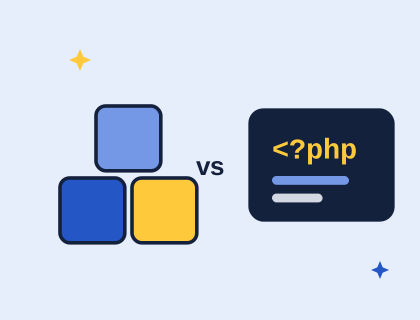
| Block theme | Classic theme | |
|---|---|---|
| Edit header and footer | Visually, in the Site Editor | Through theme options, or code |
| Colours and fonts | Styles panel, set by theme.json | Customizer options, if provided |
| Templates | HTML files of blocks | PHP files |
| Menus | Navigation block | Appearance › Menus |
| Page builders needed? | Rarely | Often used |
| Learning curve | Visual, no code needed | PHP and CSS for big changes |
Which should you choose?
Choose a block theme for a new site. You can change almost anything without code, you don't need a separate page builder, and new WordPress design features arrive in the Site Editor first. Every theme from our theme builder and free theme catalogue is a block theme.
Stay with a classic theme if your site already depends on one, on a page builder, or on plugins built around widgets and the Customizer. Switching is a redesign, so plan it like one: test on a staging copy and take a backup.
Where to go next
See what's inside a block theme, or make your own.
Questions and answers
Can I change the design after installing a theme?
Yes. All our themes are block themes, so you can change the header, footer, templates, colours and fonts in Appearance › Editor without code. You can also go back to the builder, change your choices and upload the new version.
What is the difference between a block theme and a classic theme?
A block theme builds the whole site from blocks you edit visually in the Site Editor. A classic theme uses PHP templates, with design options in the Customizer and widgets. Block themes became available with full site editing in WordPress 5.9. Full comparison.
Sources and further reading
Didn't find your answer?
Ask us anything about WordPress or the theme builder. We answer the most useful questions here, so others can benefit too.